
Give AI the context it needs, faster, clearer, every time
Foundation AI Bridge creates shareable context packs from your WordPress plugins, themes, and folders—so you can get back on track faster and reduce hallucinations.
Scan once, export a clean brief, paste into any AI assistant. Whether you're starting a fresh chat or just sick of uploading the same files on repeat—your AI gets the right context immediately, not eventually.
{
  "target": "My Plugin",
  "version": "2.1.0",
  "includes": [
    "hooks",
    "classes",
    "endpoints",
    "admin_pages"
  ],
  "structure": {
    "core": "src/Plugin.php",
    "admin": "admin/Dashboard.php"
  },
  "notes": "AI now understands the architecture"
}




Enterprise-grade features built in
Professional tools and workflows designed for agencies, teams, and serious WordPress developers.
What a "context pack" actually is
Think of it as a neat brief for your WordPress code. Instead of pasting random snippets, you give AI a structured map so it stops guessing.
A clear map
File structure, key components, and where the important logic lives, without dumping everything.
How it plugs into WP
Hooks, filters, admin pages, endpoints, and the bits that explain behaviour in real WordPress sites.
What matters, not noise
Choose your focus. Keep it high-level or deep. Exclude vendor files and irrelevant folders.
Exportable, reusable
Save per client. Version history helps you compare changes and reuse packs whenever you need help again.
From WordPress to AI-ready in 4 steps
No complicated setup. Point it at a plugin or theme, choose what you want included, then export a pack you can paste into your assistant.
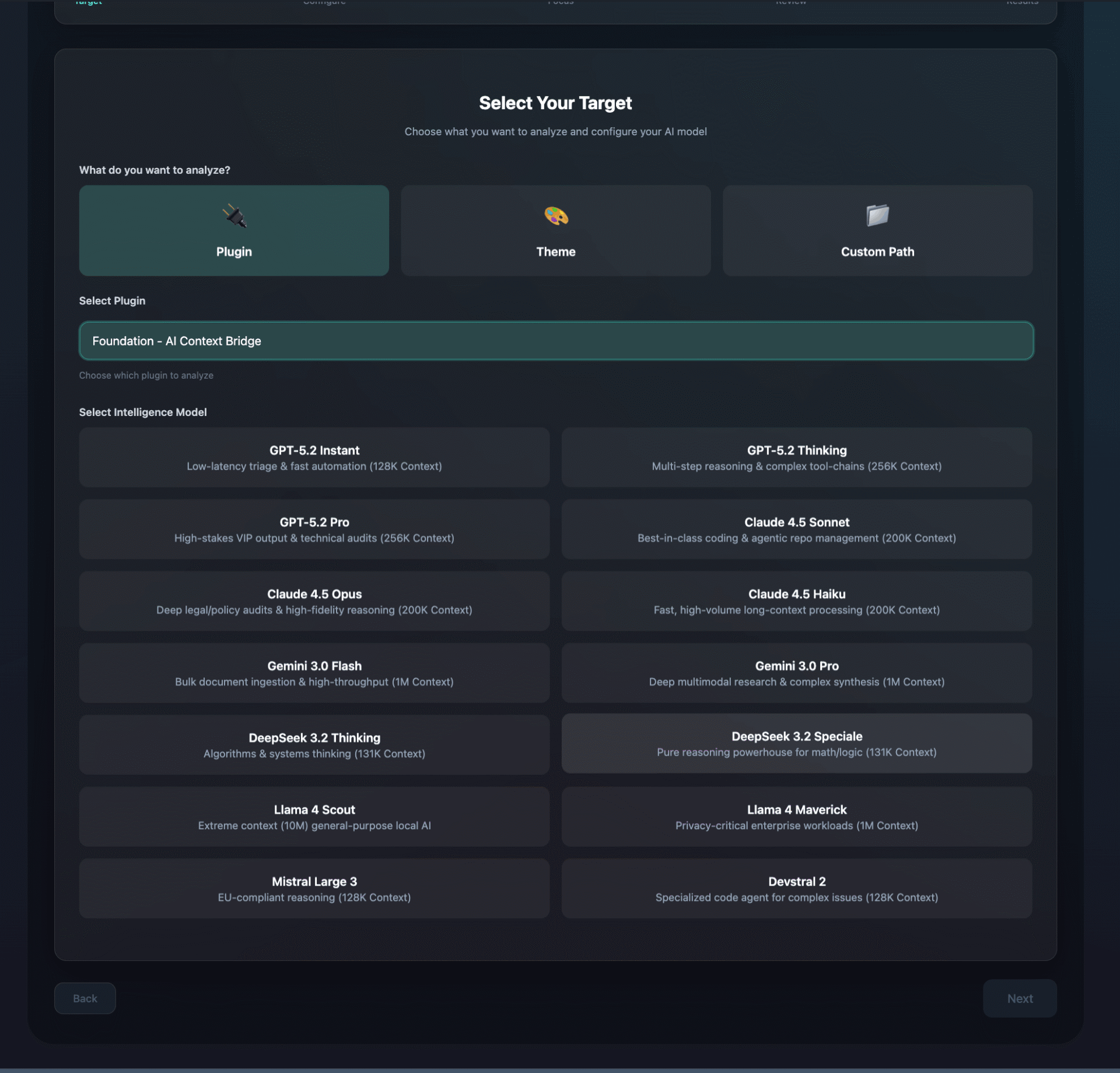
Step 1: Choose what to scan
Select a plugin, theme, or custom folder. This is great for:
- Fixing or extending a plugin you installed
- Getting AI help on a custom theme
- Reviewing a bespoke folder (mu-plugins, libraries, integrations)
Then pick your preferred AI output style. The pack is shaped so it is easy to paste and easy to understand.
Step 2: Choose the level of detail
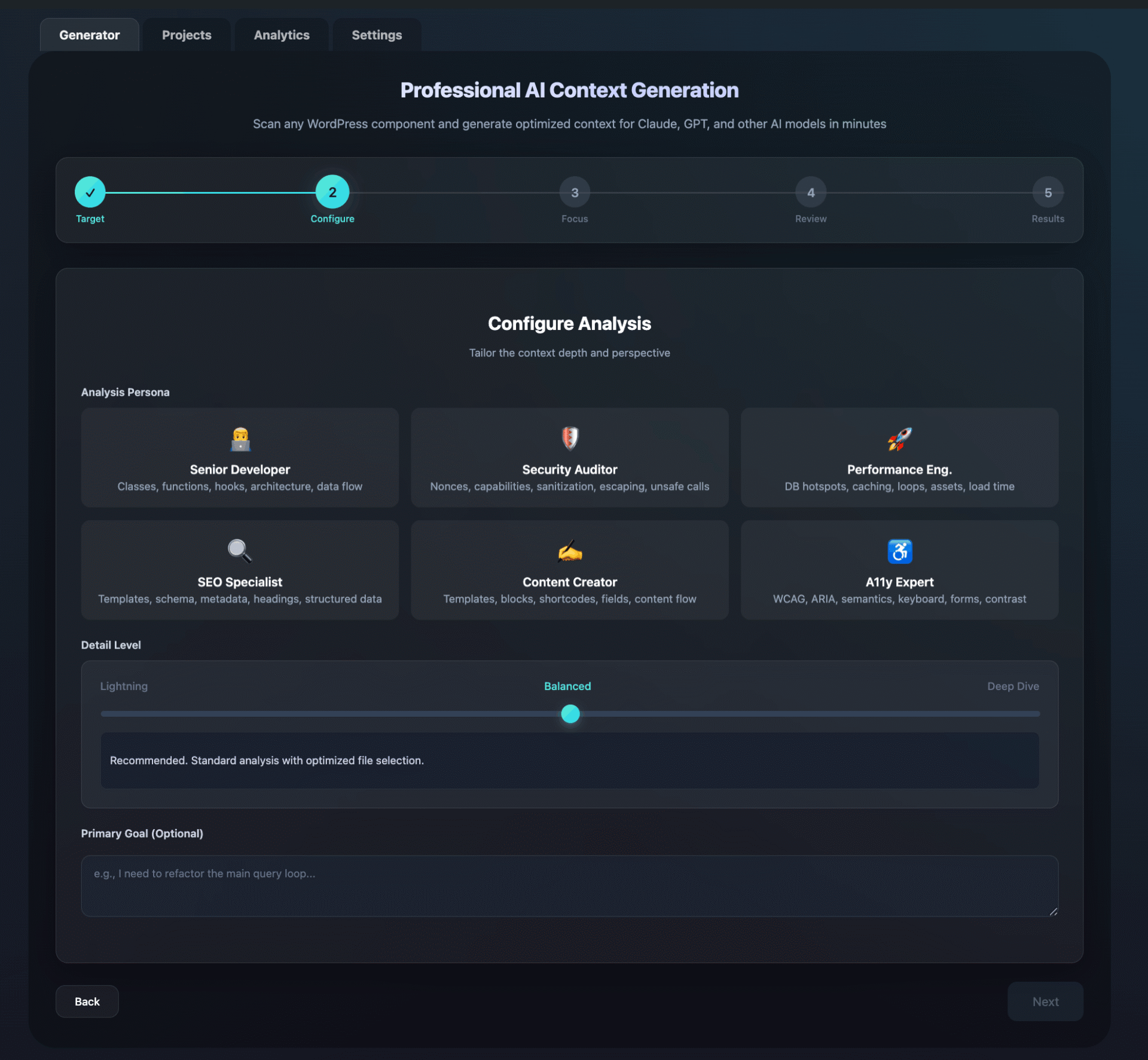
Different tasks need different depth. Pick what fits your moment:
- Quick overview for "what is this and where do I change it?"
- Build and extend for adding features safely
- Debug mode for chasing errors, conflicts, and weird behaviour
- Architecture view for bigger refactors and planning
The goal is simple: enough context to be accurate, not so much that you drown in output.
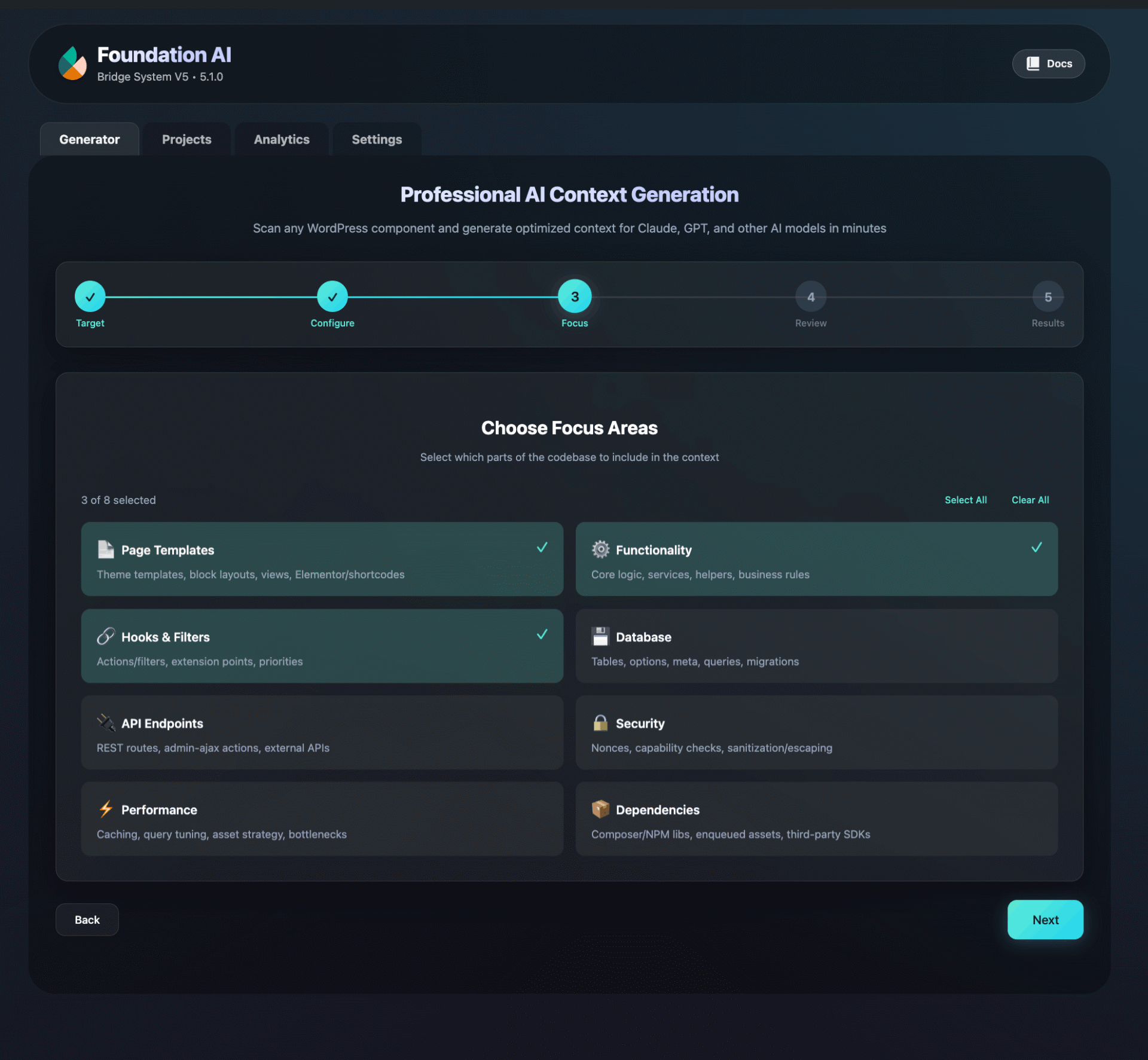
Step 3: Pick what to include
Toggle the parts that matter for your task. Common inclusions:
- File structure and key files
- Hooks and filters (how it behaves in WordPress)
- Classes and important functions
- Admin screens and settings
- REST endpoints and integrations
- Custom post types and taxonomy registration
This also helps with privacy. If you do not want something included, you can exclude it.
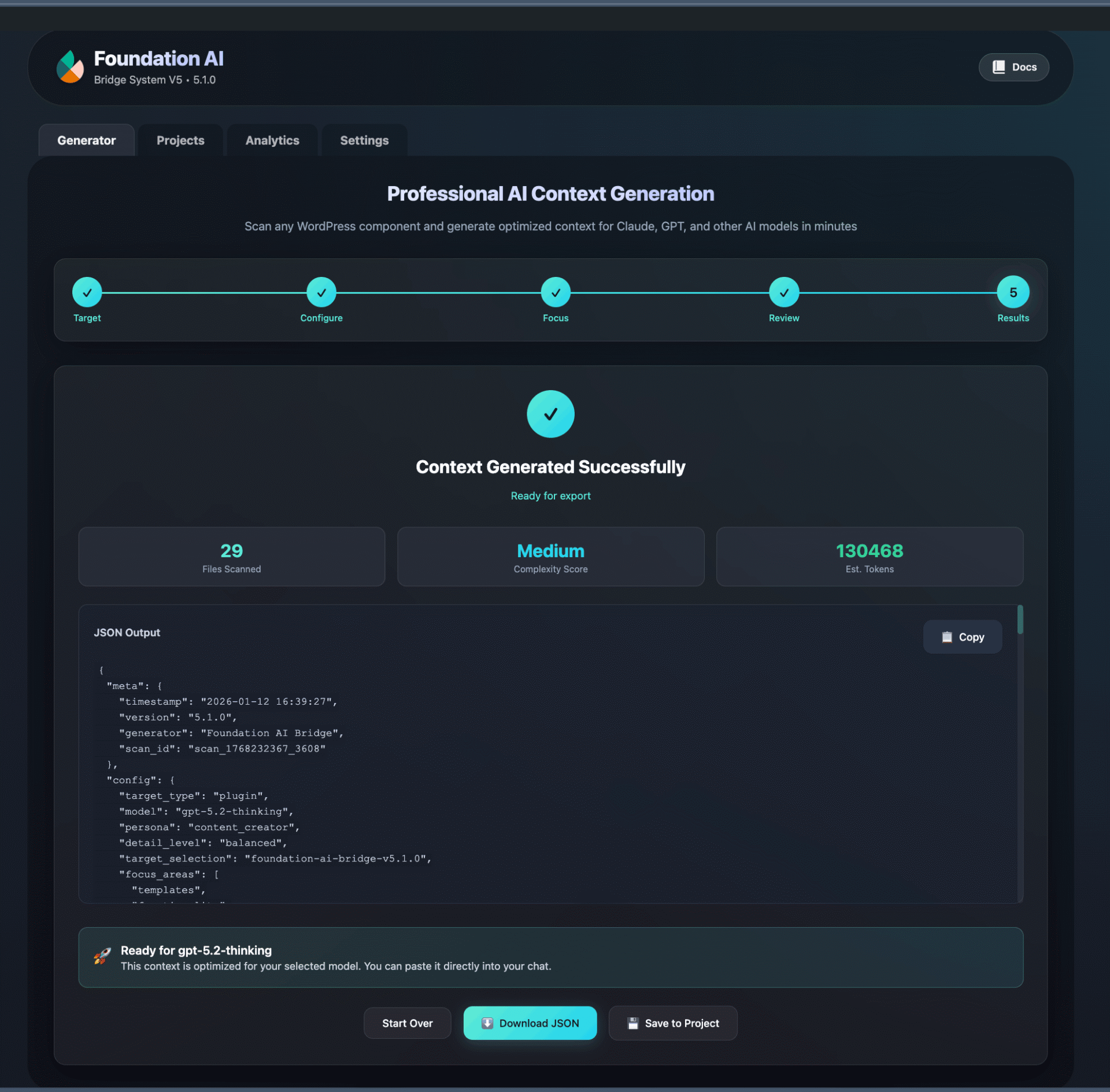
Step 4: Export and reuse
Review the output, check size and tokens, then export in the format you prefer:
- Copy to clipboard or download as JSON, Markdown, or text
- Save under a project (client/site) so you can reuse it later
- Keep history so you can compare changes over time
Result: your assistant gets context once, then becomes genuinely useful for that project.
Simple pricing that matches real workflows
Start free to prove the value. Upgrade when you want unlimited scans, deeper exports, and project history.
Free
- 1 active project
- 5 scans per month
- Plugin/theme scanning
- JSON export
- Model-friendly formatting
- Community support
Professional
- Unlimited scans
- Unlimited projects
- JSON, Markdown, and text exports
- Custom path targeting
- Scan history and comparisons
- Advanced filtering controls
- Priority email support
Agency
- Everything in Professional
- Unlimited sites
- Multisite support
- White-label exports
- Team workflow features
- REST API access
- WP-CLI integration
- Priority support
If it does not save you time, you get a full refund.
Frequently Asked Questions
Not at all. While developers use it for architecture planning, it is perfect for site owners who just want to ask AI to fix a bug, change a colour, or explain how a plugin works, without getting wrong answers because the AI doesn't know your specific setup.
No. The scanning happens locally on your WordPress server. You choose what to export, and you paste that text directly into your AI chat (ChatGPT, Claude, etc). We do not store your code.
Yes. The "Context Packs" are text-based (JSON or Markdown). You simply copy and paste them into the chat. It works with free ChatGPT, Claude, Gemini, and even local LLMs.
Absolutely. The Professional plan covers up to 3 sites, and the Agency plan allows unlimited sites. You can also generate white-label exports on the Agency plan to share with your team.